
Support & Help Center
Contacts Toolkit Support & Help Center
Get help with duplicate review, contact Notes, formatting previews, and operation history in Contacts Toolkit.
- One-time purchase
- macOS 15.0+
- 16 languages · 17 localization variants
Review and preserve contact Notes
Contacts Toolkit 6.2.0 and later can read and edit contact Notes. Notes are preserved when copying or moving contacts between accounts and in new automatic backups.
Before saving a merge, review and edit the combined Notes. Identical Notes appear once, and distinct Notes are separated by blank lines.
App Screenshots
A quick look at the tools available inside Contacts Toolkit.
Quick Help
Jump straight to answers or send the support team a message.
Frequently asked questions
Answers to the most common cleanup and privacy questions.
How does the smart duplicate detection work?
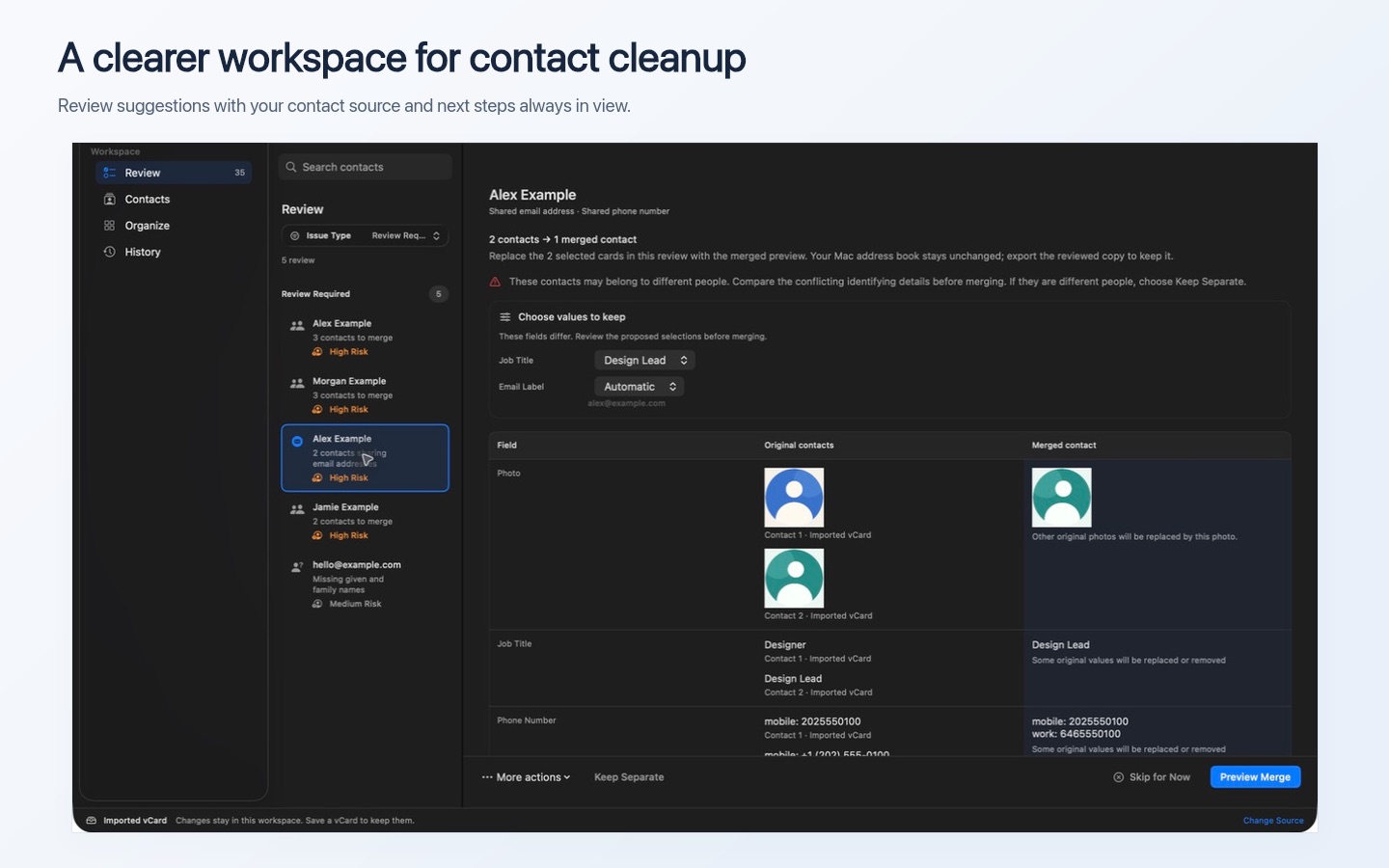
Contacts access is optional. You can scan Mac Contacts, import a vCard, select contacts, or use sample data. Review combines name, email, and phone matching evidence for each set of suggested duplicates. Compare differing fields, choose what to keep, and preview the merged contact before saving.
How does Contacts Toolkit protect my privacy?
Contact processing, operation history, Keep Separate decisions, automatic backup snapshots, diagnostic logs, and screenshots stay on your Mac. You can choose to send selected logs or a screenshot in a support email. Contacts Toolkit does not automatically upload contacts, analytics, logs, or screenshots, and it has no developer-operated sync service.
How does phone number formatting work?
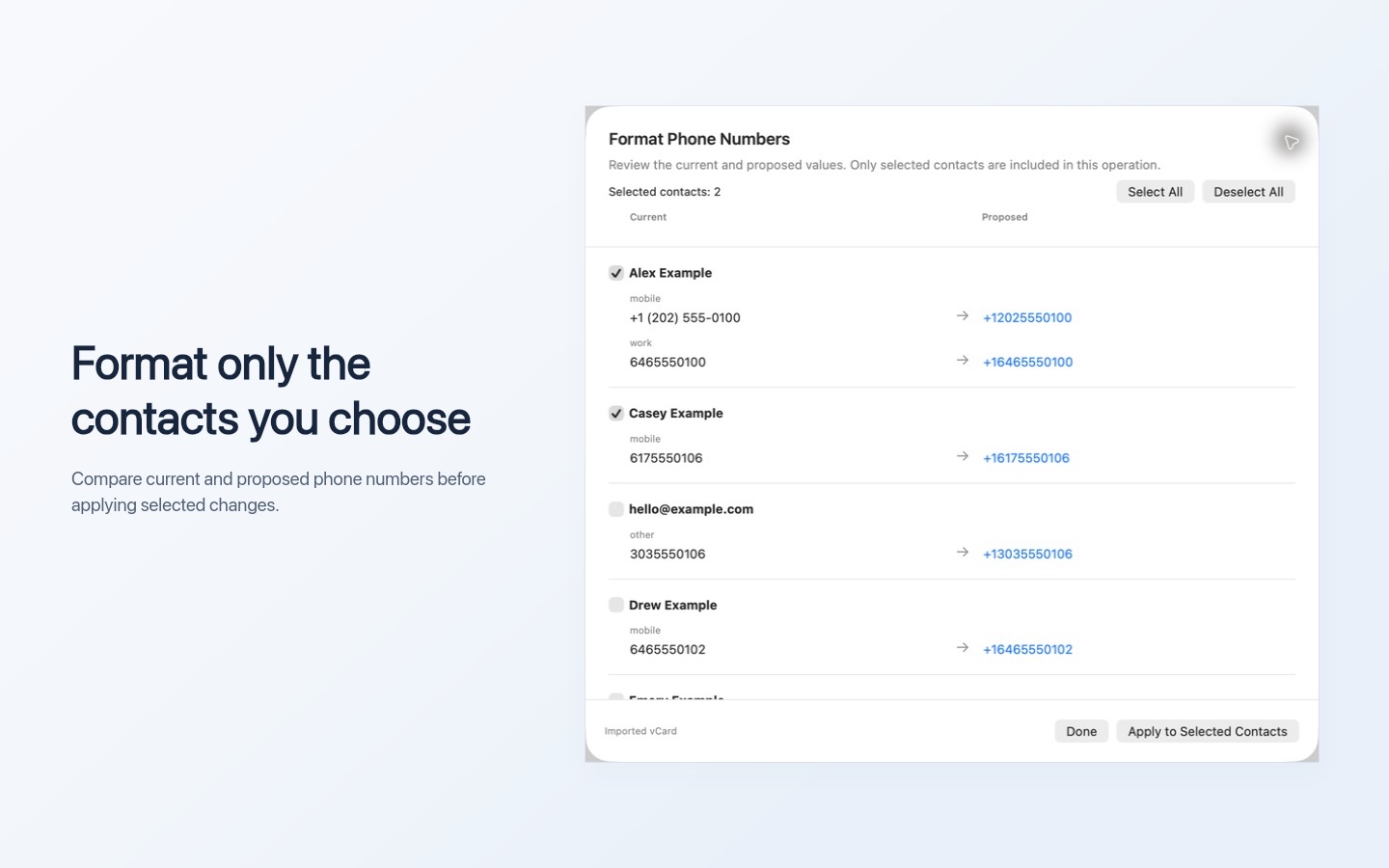
In Organize, compare the current and proposed phone or mailing address formatting, then apply changes only to selected contacts. Phone formatting supports 40 countries, and address formatting supports 32.
What are the system requirements and cost?
Contacts Toolkit requires macOS 15 or later and is a one-time purchase with no subscription. If we release a new major version, it will be sold as a separate app, and buying it is optional. See the Mac App Store for the current price.
How do automatic backups work?
When automatic backups are enabled, supported bulk operations on Mac Contacts create a local vCard snapshot in app-owned storage. The latest 10 snapshots are retained, subject to a 30-day retention period. When a backup is available, recover saved contacts as copies from History. Recovered contacts are added as new entries, normally into their original accounts. If an account is unavailable, the app can use the default account after warning you. Restored entries may coexist with cleaned or merged contacts, so scan again to remove duplicates. Restoration is a recovery tool rather than an exact undo. New automatic backups created in Contacts Toolkit 6.2.0 or later include contact Notes. Older backups may not include Notes, and restoring them cannot recover Notes that were not captured. See Notes support for details.
Does this work with iCloud and sync across devices?
Contacts Toolkit does not operate a sync service. Changes it makes to Mac Contacts may sync normally through your configured iCloud, Google, Exchange, or other contact account. Sync behavior is controlled by macOS and the account provider.
How do I use the new workspace in version 6.0.0?
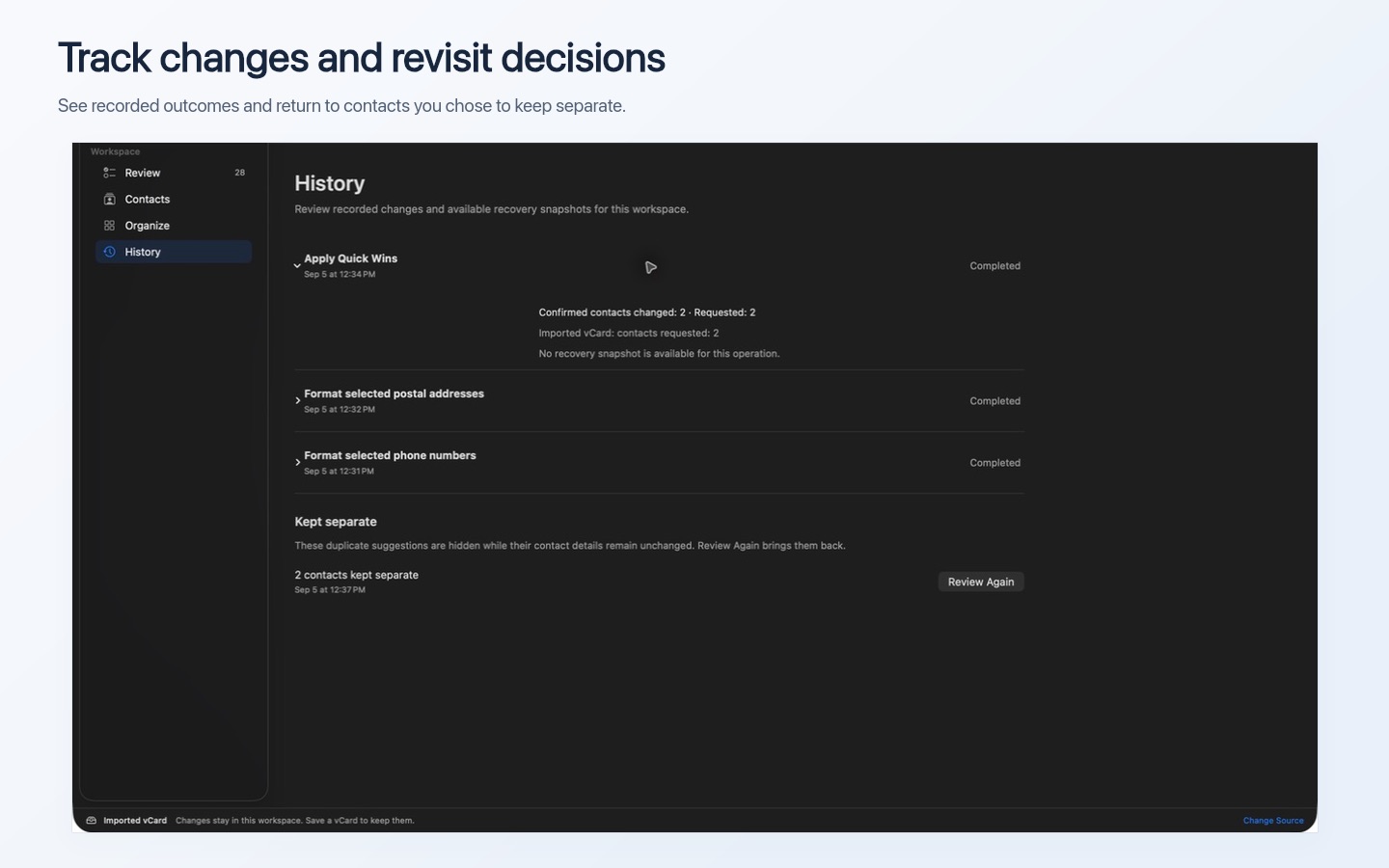
The sidebar opens Review, Contacts, Organize, and History. Review contains the issue queue, Contacts lets you browse and edit contacts, Organize previews formatting changes, and History records operation outcomes and requested versus confirmed changes. Change Source at the bottom of the window switches your contact source. For walkthroughs, open Help > How to Use Contacts Toolkit or try the guided tour with sample data.
What does Keep Separate remember?
Keep Separate remembers a duplicate-review decision while those contact details remain unchanged. You can revisit the decision in History. If the contact details change, the contacts may be suggested for review again.
How do Quick Wins batches work?
Review every decision before applying a Quick Wins batch. The reviewed batch is fixed; suggestions discovered afterward wait for another review. When review finishes, applied actions and skipped issues are listed separately. Rescan to revisit skipped issues.
How do I save changes to imported or selected contacts?
Use Save Cleaned vCard to export changes made to imported, selected, or sample contacts. These workspaces stay local. The exported vCard keeps your cleaned contacts in a file you can save or import later.
Still need help?
Write to our support team using your email app.
Professional contact management for macOS · One-time purchase · Local processing with no automatic uploads